
This course contains member only contents,
please check the following for
membership subscription.
-
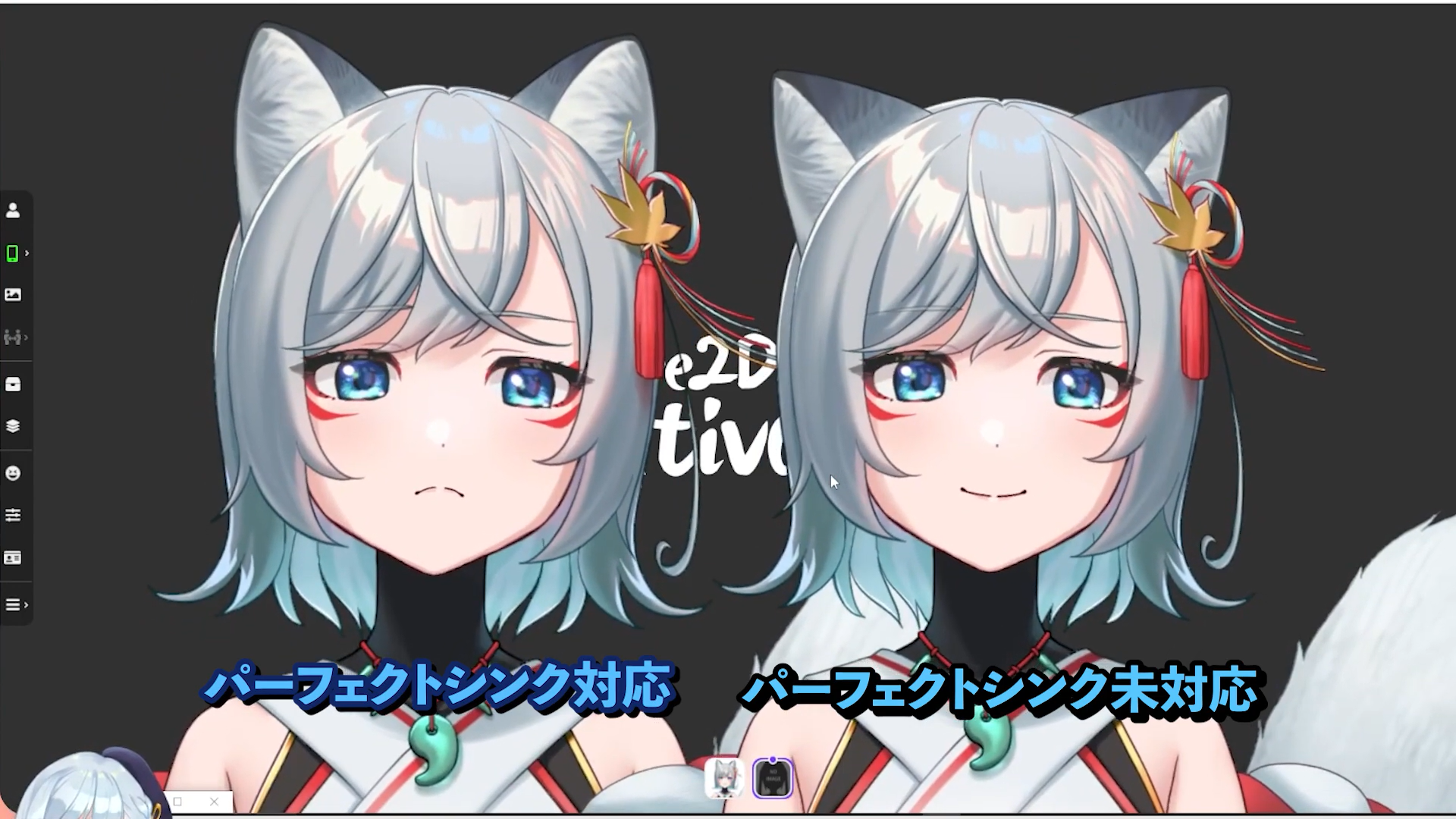
Comparison with unsupported models
-
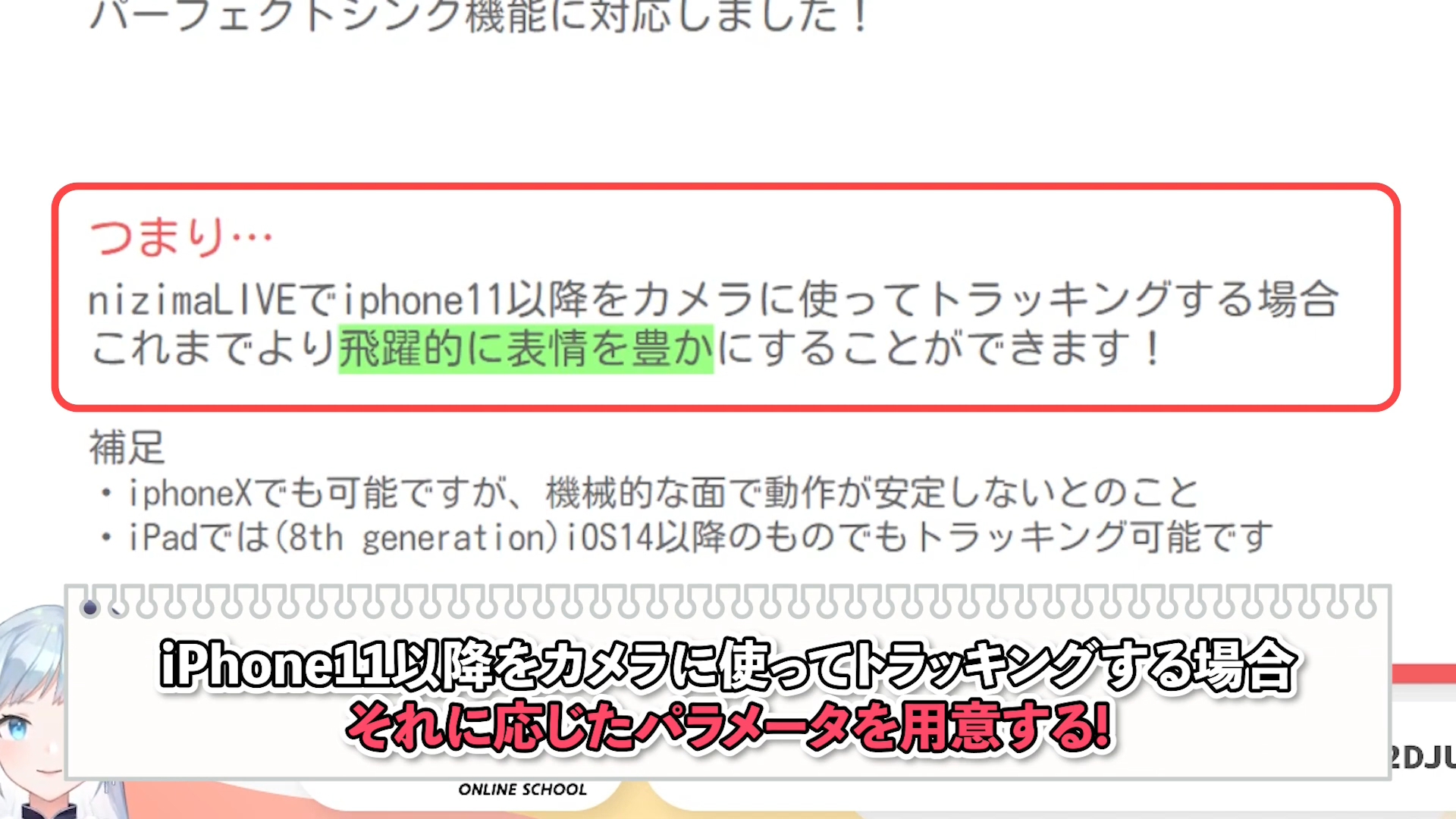
Perfect Sync with Live2D's official tracking app "nizimaLIVE"
-
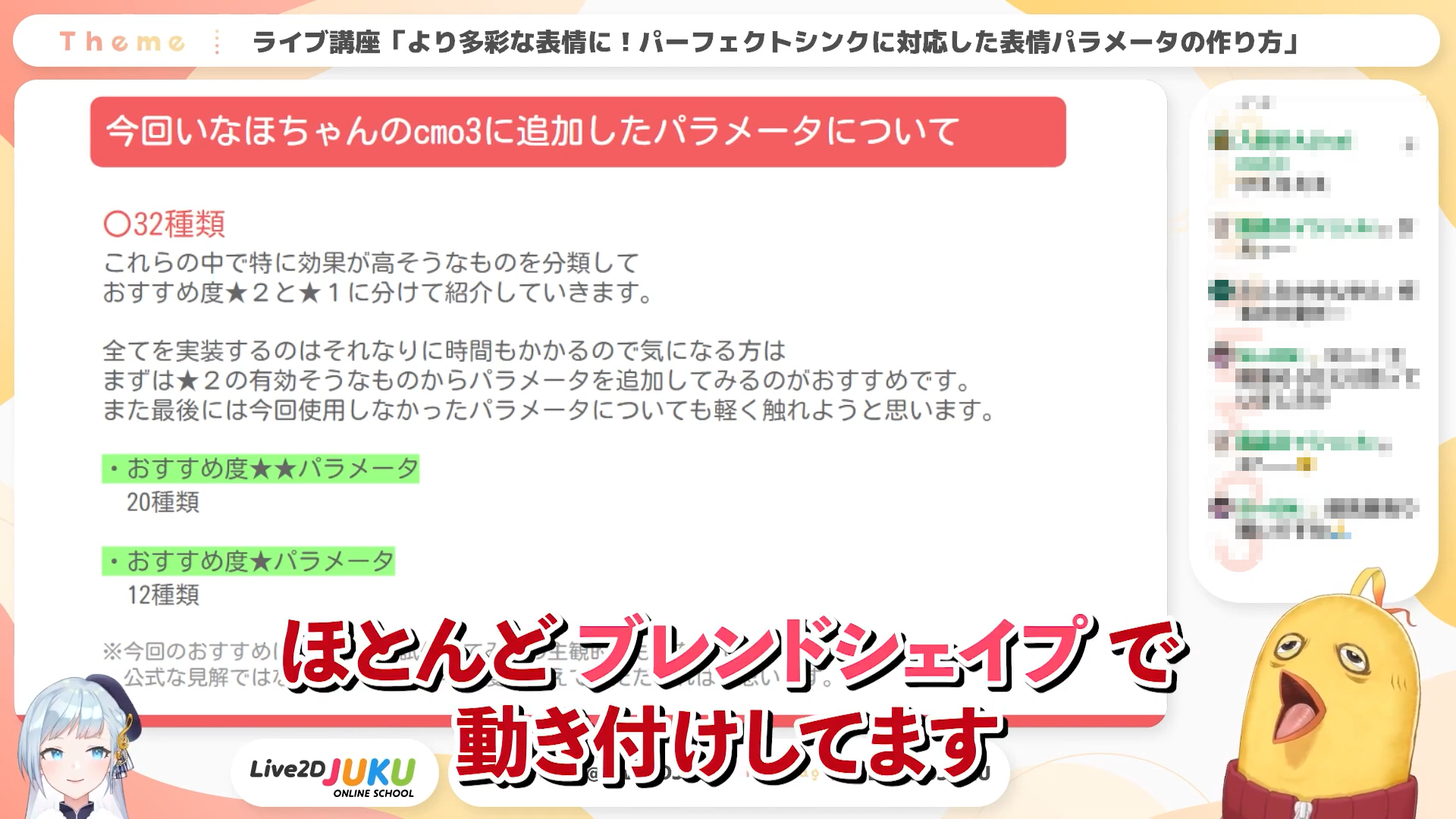
Mainly use blendshapes
-
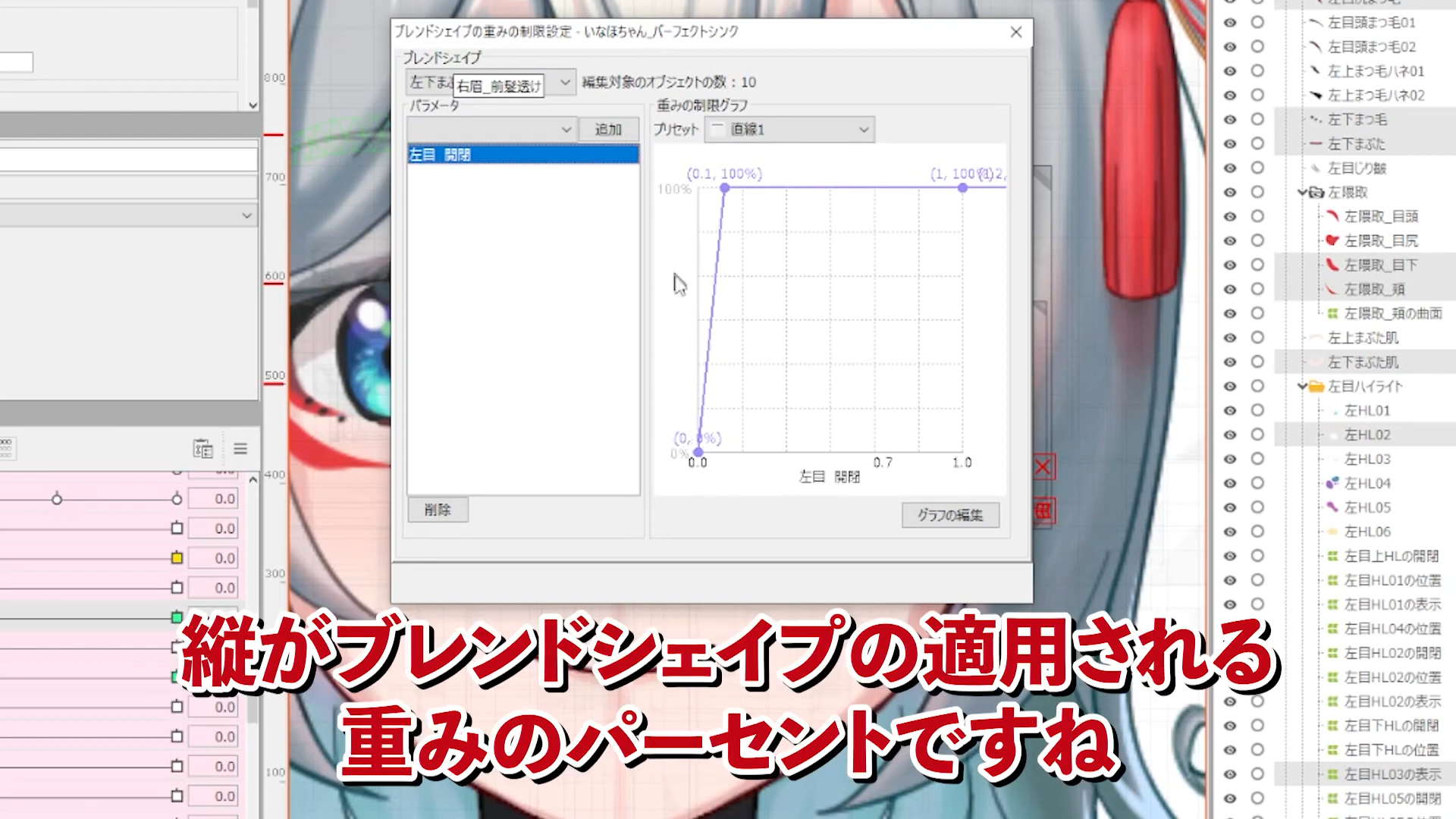
Limit settings for blend shape weights
-
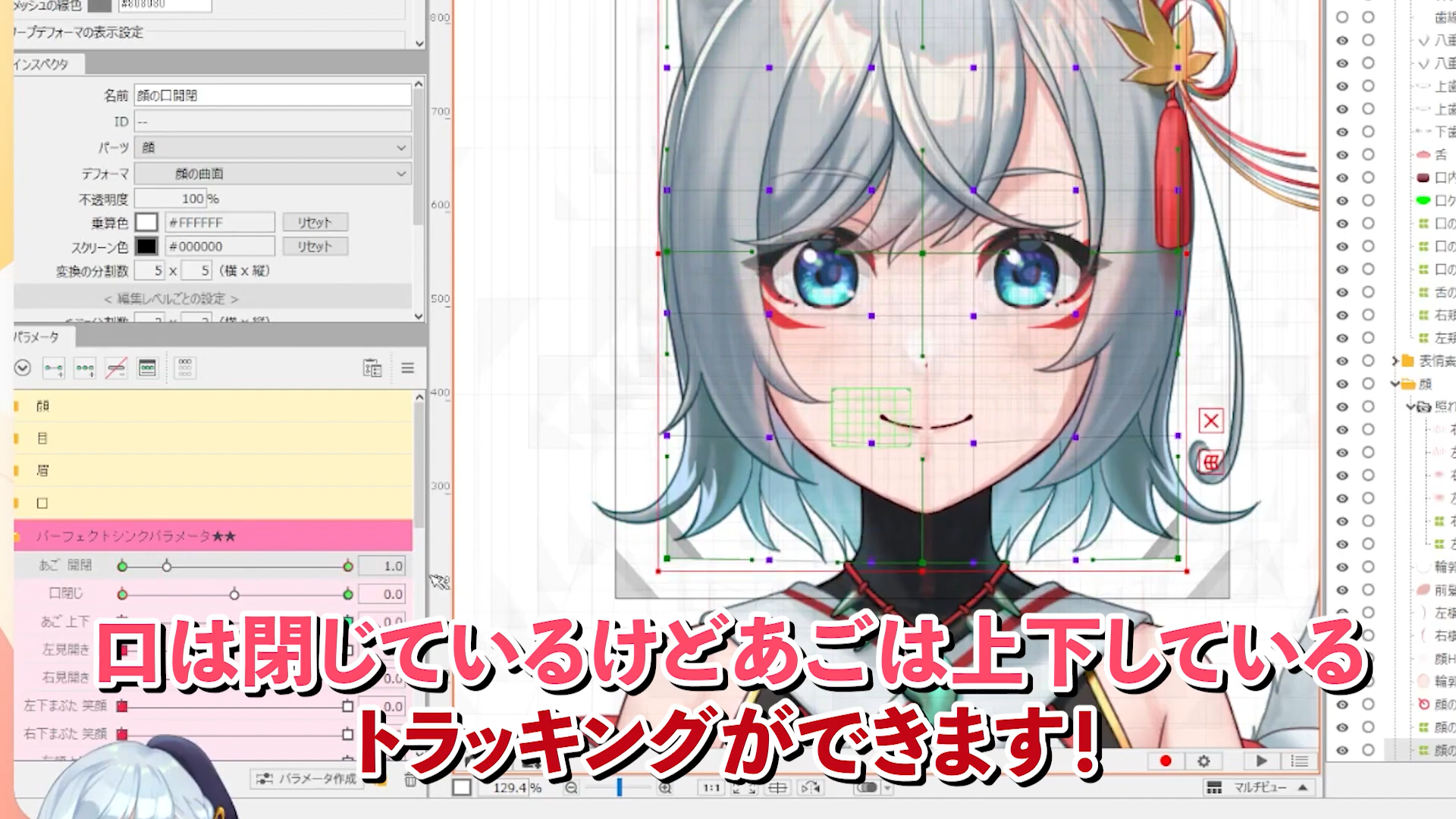
Mouth chewing movement
-
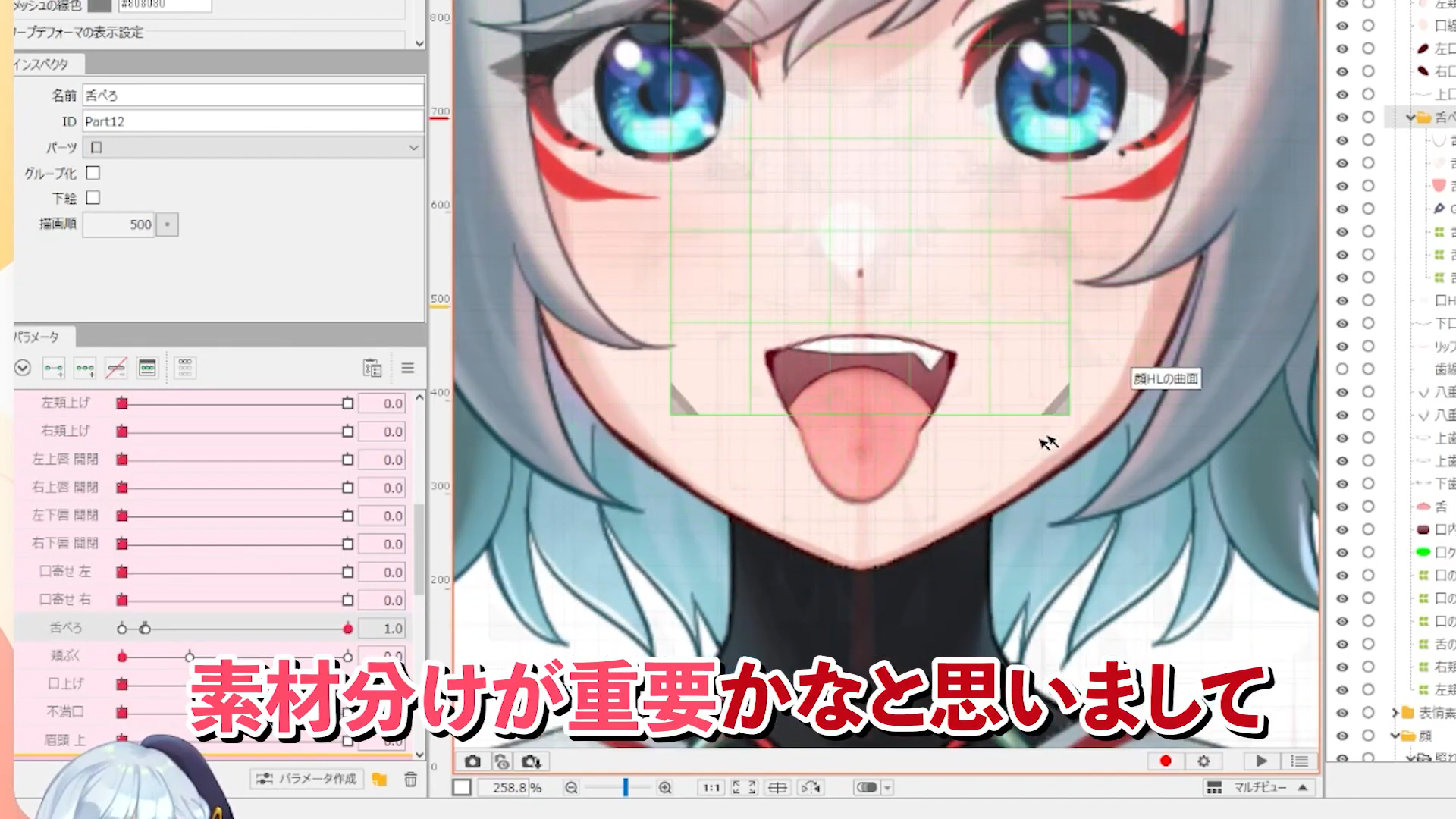
Tongue flicking
-
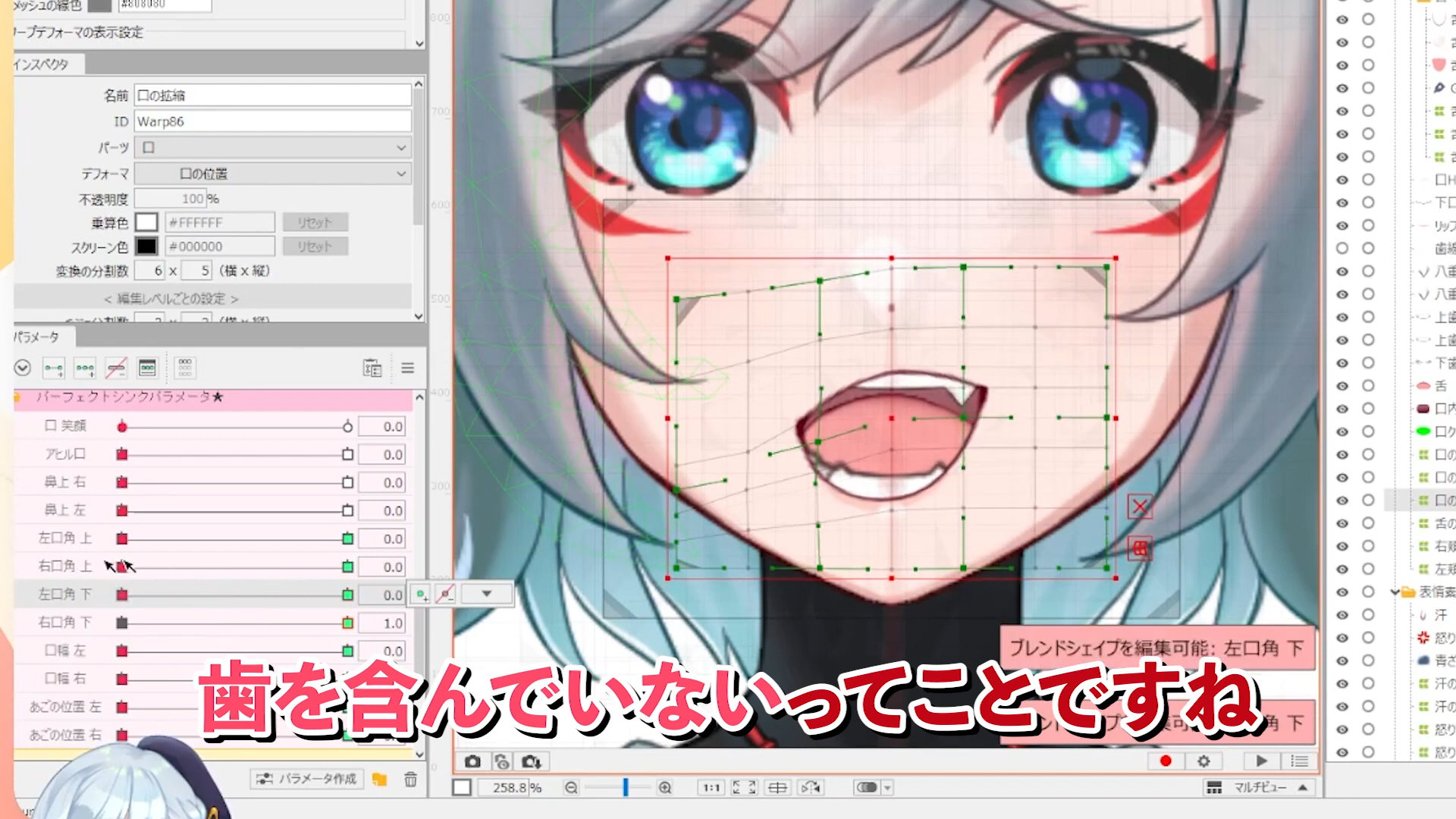
Movement to move the corners of the mouth up and down
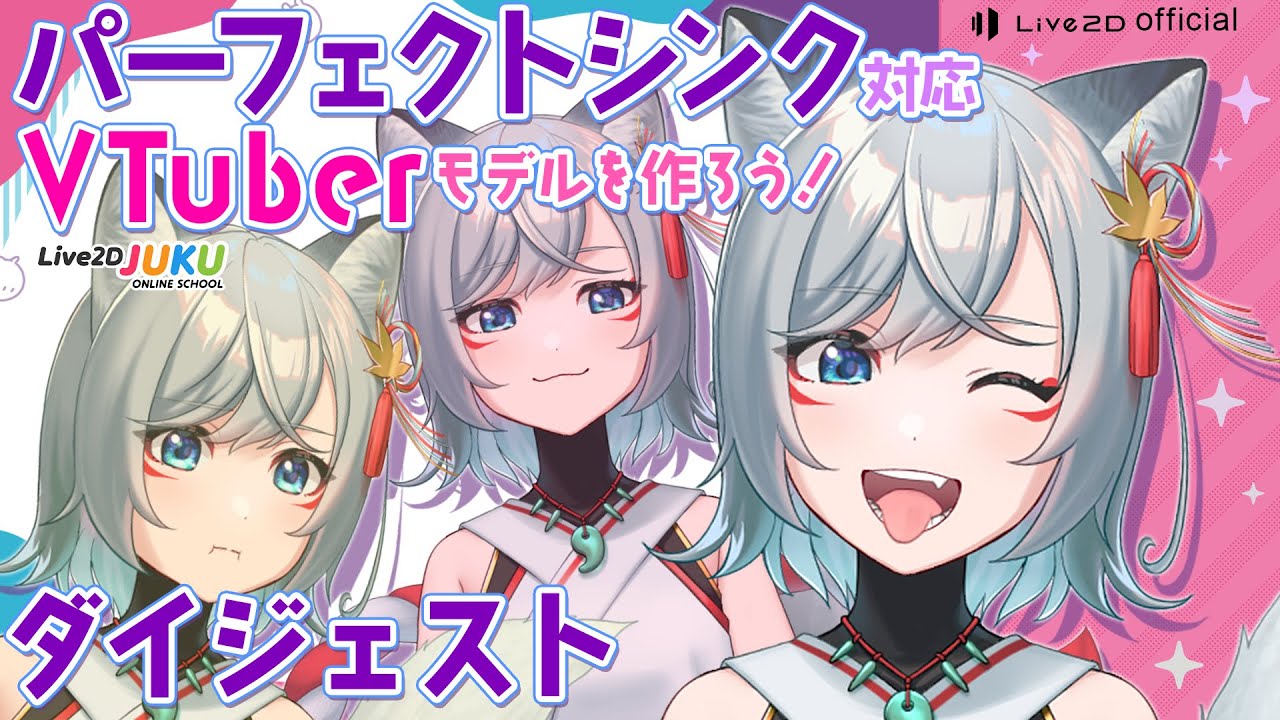
In this course, we will explain how to create VTuber models that support PerfectSync!
Perfect Sync is a feature that recognizes even the smallest facial expressions when tracking with the iOS camera.
nizimaLIVE, the official Live2D tracking app, supports Perfect Sync, so we will also show you how to set it up!
This is a must-see live lecture for those who want to take the facial expressions of their VTuber models to the next level.
Since blendshapes are mainly used in the creation process, this lecture is also recommended for those who want to know more about this feature!
For more detailed information on how to create facial expressions, please refer to the “Tips and Tricks for Creating Facial Expressions” video course, which you can watch together for a better understanding of the process.
For details of the reference course, please refer to
“Summary of Tips for Facial Expression Creation”
■Video list of this course
#1 Introduction, What is Perfect Sync?
#2 Recommendation ★★ Expression parameter creation, eyes
#3 Recommendation ★★ Expression parameter creation, mouth and nose
#4 Recommendation ★ Expression parameter creation
#5 Other parameters, nizimaLIVE settings
The data used in this course can be downloaded here.
To download the data, you need to log in to the members-only page. For details about login, please click here.
This is an edited version of the live streaming on 2022.11.1, “More Versatile Expressions! How to create facial expression parameters for perfect sync” [#Live2DJUKU].
Total 5 videos
-
#1What is Perfect Sink?
I will explain what the iOS tracking function PerfectSync is, what its specifications are, and how to make use of it in Live2D models, showing slides in an easy-to-understand manner.
Let’s take a look at the actual supported models
What is Perfect Sync
Specific differences from previous parameters
About added parameters
About timing for adding parametersFor detailed creation of facial expressions, we will also refer to the video lecture “Summary of Tips for Facial Expression Creation,” so please watch it together for a better understanding.
For details of the reference course, please refer to
Summary of tips for facial expression production -
#2Recommendation ★★Expression Parameter Production, Eyes
Among the various Perfect Sync parameters, we have sorted them by recommendation level and introduced the ones with a 2 stars rating.
We will show the actual parameters related to eyes for perfect sync in the editor and explain them one by one in detail.
Let’s take a look at the distributed data and visualize how to implement them in your models!Recommendation ★★ “Eyebrow head”
Recommendation ★★ “Spread”
Recommendation ★★ “Lower eyelid smiling” and “Cheek lift”
About setting weight limits for blendshapesFor more detailed information on how to create facial expressions, please refer to the video lecture “Summary of Tips for Facial Expression Creation” and watch it together for a better understanding.
For details of the reference course, please refer to
“Summary of Tips for Creating Facial Expressions” -
#3Recommendation ★★Expression Parameters Production, Mouth and Nose
Among the various Perfect Sync parameters, we have sorted them by recommendation level and introduced the ones with a 2 stars rating.
We’ll carefully explain each one while showing the mouth and nose parameters for Perfect Sync directly in the editor.
Take a look at the provided data and visualize how to implement these into your own models!Recommended ★★ Mouth Expression Parameters: “Jaw Open/Close” “Lips Open/Close”
Using “Jaw Open/Close” settings to express chewing
Lip Open/Close weighting settings
Recommended ★★ “Tongue Out” and “Cheek Puff”
Recommended ★★ “Mouth Pull Left/Right”, “Mouth Up”, “Displeased Mouth”For more detailed information on how to create facial expressions, please refer to the video lecture “Summary of Tips for Facial Expression Creation” and watch it together for a better understanding.
For details of the reference course, please refer to
“Summary of Tips for Creating Facial Expressions” -
#4Recommendation ★ Expression parameter production
Among the various Perfect Sync parameters, we have sorted them by recommendation level and introduced the ones with a 1 star rating.
I’ll carefully explain each one step-by-step while showing the Perfect Sync parameters directly in the editor.
Implementing these alongside the ★2 parameters will dramatically enrich your model’s expressions, so if you’ve made it this far, push through for one last effort!About ★-Rated Recommended Parameters
★-Rated Recommendations: “Duck Lips,” “Left/Right Mouth Corner Up/Down”
★ “Mouth Width Left/Right” “Chin Position Left/Right”
★ “Mouth Smile”
★ “Nose Top”For more detailed information on how to create facial expressions, please refer to the video lecture “Summary of Tips for Facial Expression Creation” and watch it together for a better understanding.
For details of the reference course, please refer to
“Summary of Tips for Creating Facial Expressions” -
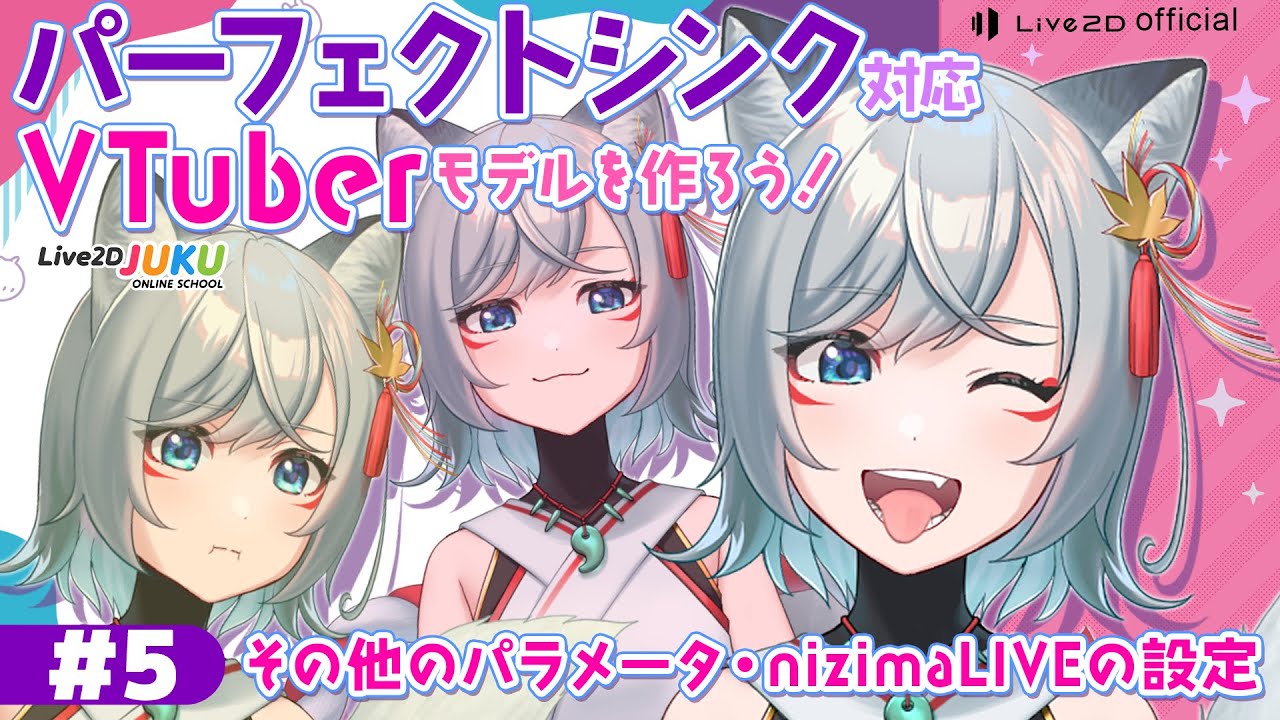
#5Other parameters and nizimaLIVE settings
We will introduce parameters that were not used in this course as well as those substituted with basic parameters.
Once all the parameters you want to implement are created, we will also explain how to load them into nizimaLIVE and how to check them in the application.Parameters that were not created this time
Parameters that substituted with standard parameters
“Those not used this time 1”
“Those not used this time 2”
Please try to set the parameters as you like!
nizimaLIVE SettingsFor more detailed information on how to create facial expressions, please refer to the video lecture “Summary of Tips for Facial Expression Creation” and watch it together for a better understanding.
For details of the reference course, please refer to
“Summary of Tips for Creating Facial Expressions”
Release Date2022/12/12